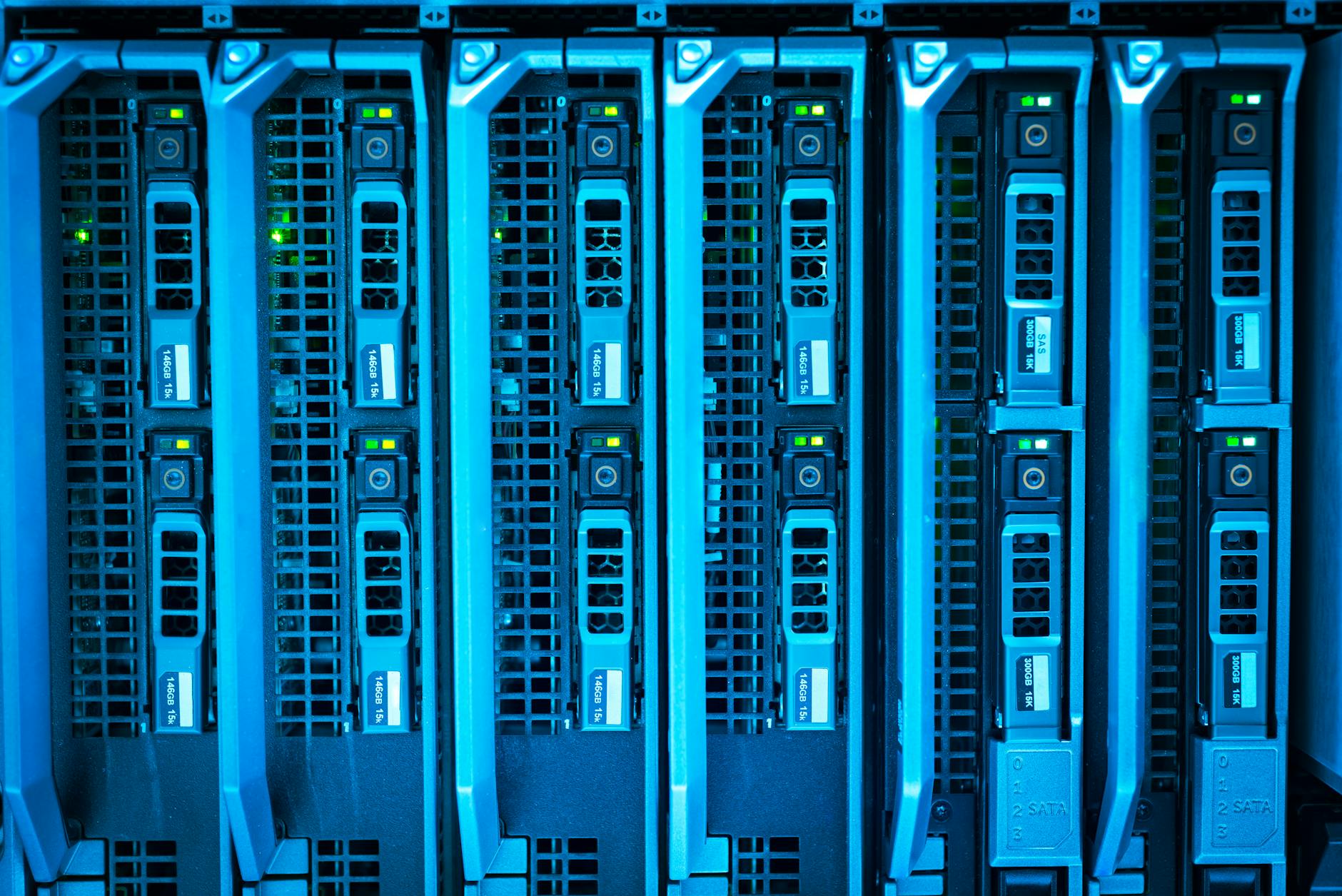
Hyper-V is Microsoft's native hypervisor, built directly into Windows Server. It lets you run multiple virtual machines on a single physical host, each isolated with its own OS, network, and storage. Whether you are building a lab, consolidating ageing servers, or deploying a private cloud, Hyper-V is a production-grade platform that competes directly with VMware vSphere and Citrix Hypervisor.
Installing the Hyper-V Role
Hyper-V requires hardware virtualisation support (Intel VT-x or AMD-V) enabled in BIOS/UEFI. Verify support before installing:
Get-ComputerInfo | Select-Object HyperVisorPresent, HyperVRequirementVMMonitorModeExtensions, HyperVRequirementVirtualizationFirmwareEnabledAll three should return True. Then install the role:
Install-WindowsFeature -Name Hyper-V -IncludeManagementTools -RestartThe server will restart. After reboot, open Hyper-V Manager from Server Manager > Tools.
Planning Your Virtual Switch
Before creating VMs, set up a virtual switch to connect them to your network. Hyper-V has three switch types:
- External: Binds to a physical NIC, giving VMs access to your physical network and the internet. Most common for production VMs.
- Internal: Connects VMs to each other and to the host, but not to the external network. Useful for isolated test environments with host access.
- Private: Connects VMs to each other only — the host has no connectivity. Use for completely isolated lab scenarios.
Create an external switch in Hyper-V Manager by clicking Virtual Switch Manager in the right panel. Select External, choose the physical NIC to bind to, and name it meaningfully (e.g., External-Production). Check Allow management OS to share this network adapter unless you have a dedicated NIC for Hyper-V management traffic.
New-VMSwitch -Name "External-Production" -NetAdapterName "Ethernet" -AllowManagementOS $trueCreating Your First Virtual Machine
In Hyper-V Manager, click New > Virtual Machine in the right panel. The New Virtual Machine Wizard steps:
- Name and location: Give the VM a descriptive name. Change the storage location to a drive with sufficient space — avoid the system drive for VM storage.
- Generation: Choose Generation 2 for any modern OS (Windows Server 2012+, modern Linux). Generation 2 supports UEFI, Secure Boot, and faster boot times. Use Generation 1 only for legacy OSes.
- Memory: Assign startup RAM. Enable Dynamic Memory with a minimum of 512 MB and maximum appropriate for your workload — Hyper-V will balance RAM across VMs automatically.
- Networking: Select your virtual switch.
- Virtual hard disk: Create a new VHD/VHDX. VHDX is the modern format — it supports up to 64 TB and has better resilience. Use a dynamically expanding disk for lab VMs; fixed size for performance-critical production VMs.
- Installation options: Point to an ISO file for OS installation.
Hyper-V Integration Services
After installing the guest OS, install Hyper-V Integration Services. On Windows Server guests, these are included automatically via Windows Update. On Linux guests, the kernel modules are included in modern kernels (4.4+). Integration Services enable:
- Time synchronisation with the host
- Heartbeat monitoring (Hyper-V can detect if the guest OS has stopped responding)
- Live Migration support
- Online backup via VSS
- Guest shutdown from the Hyper-V Manager
Snapshots and Checkpoints
Hyper-V calls snapshots checkpoints. Before making risky changes (applying patches, software installs), create a checkpoint:
Checkpoint-VM -Name "SRV-WEB01" -SnapshotName "Pre-Patch-$(Get-Date -Format yyyy-MM-dd)"To revert: right-click the checkpoint in Hyper-V Manager and choose Apply. Delete checkpoints once changes are confirmed stable — active checkpoints create AVHD difference disk files that grow over time and degrade performance.
Live Migration
Live Migration moves a running VM from one Hyper-V host to another with no downtime. Requirements: both hosts must be in the same domain, have shared storage or use SMB 3.0 direct migration, and have matching processor families. Configure Live Migration in Hyper-V Settings on each host, then move a VM:
Move-VM -Name "SRV-APP01" -DestinationHost "hyper-v-host02" -IncludeStorage -DestinationStoragePath "D:VMs"Recommended Resource Allocation
As a starting point for lab and small production environments:
- Domain Controllers: 2 vCPU, 2 GB RAM (static), 60 GB disk
- File/Print servers: 2 vCPU, 4 GB RAM, 80 GB OS disk + data disk
- Web/Application servers: 4 vCPU, 8 GB RAM, 80 GB disk
- Never allocate more vCPUs than your host has logical processors — over-provisioning CPUs causes scheduling delays



