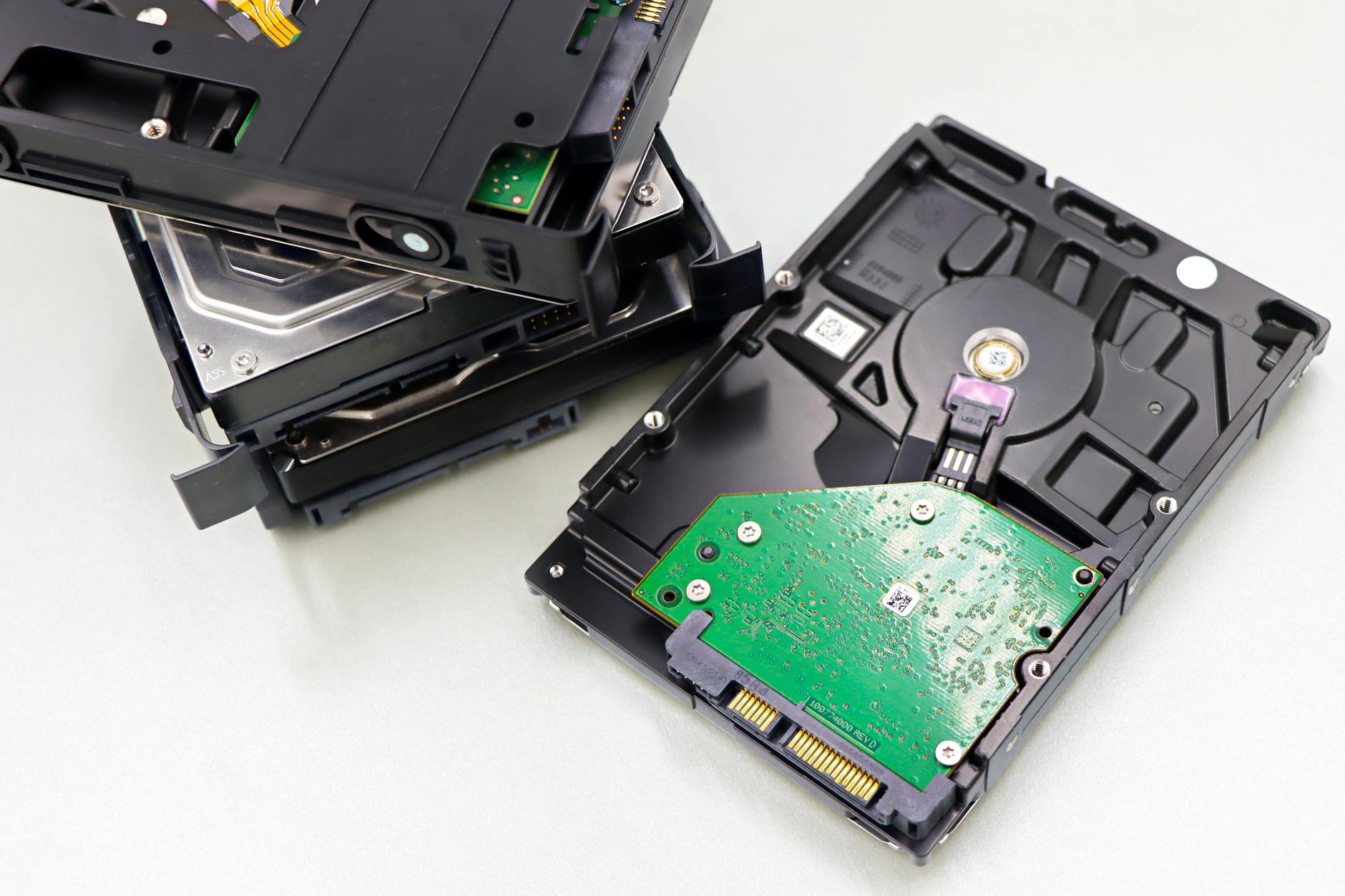
Disk management is a critical sysadmin skill. Running out of disk space can crash services, corrupt databases, and cause data loss. Knowing how to inspect disks, manage partitions, create filesystems, and monitor usage is non-negotiable. This guide covers the essential disk management tools on Linux.
Listing Disks and Partitions
lsblk                     # List block devices in tree format
lsblk -f                  # Include filesystem type and UUID
lsblk -o NAME,SIZE,TYPE,MOUNTPOINT,FSTYPE

fdisk -l                  # Detailed partition table (run as root)
fdisk -l /dev/sda         # Specific disk only

parted -l                 # Alternative to fdisk, supports GPT
Output of lsblk shows device names (sda, sdb, nvme0n1), sizes, and mount points. Partitions appear as sda1, sda2, etc.
Disk Usage: df and du
df — Disk Free (filesystem level)
df -h                     # Human-readable sizes
df -hT                    # Include filesystem type
df -h /var                # Usage for specific mount point
df -i                     # Inode usage (important — can fill up separately)
du — Disk Usage (directory level)
du -sh /var/log           # Total size of directory
du -sh /var/log/*         # Size of each item
du -h --max-depth=1 /     # Top-level directories (great for finding hogs)
du -sh * | sort -rh | head -10   # Top 10 largest items in current dir
When a disk fills up, run du -h --max-depth=1 / then drill down into the largest directories to find what is consuming space.
Partitioning with fdisk
Assume you have added a new disk at /dev/sdb:
sudo fdisk /dev/sdbInside fdisk:
m       # Help/menu
n       # New partition
p       # Primary partition
1       # Partition number 1
        # Accept defaults for start/end (use full disk)
w       # Write changes and exit
Creating Filesystems
sudo mkfs.ext4 /dev/sdb1            # Format as ext4
sudo mkfs.xfs /dev/sdb1             # Format as XFS (common on RHEL)
sudo mkfs.vfat /dev/sdb1            # Format as FAT32 (USB drives)

# Check filesystem type
blkid /dev/sdb1
file -s /dev/sdb1
Mounting Filesystems
sudo mkdir /mnt/data
sudo mount /dev/sdb1 /mnt/data         # Temporary mount
mount | grep sdb1                      # Verify mount
sudo umount /mnt/data                  # Unmount
Permanent Mounts via /etc/fstab
First get the UUID (more reliable than device names, which can change):
sudo blkid /dev/sdb1
# /dev/sdb1: UUID="a1b2c3d4-..." TYPE="ext4"
Add to /etc/fstab:
UUID=a1b2c3d4-xxxx /mnt/data ext4 defaults 0 2Test without rebooting:
sudo mount -a         # Mount all entries in fstab
df -h /mnt/data       # Verify
Logical Volume Management (LVM) Basics
LVM allows flexible resizing of volumes without repartitioning:
pvdisplay                # Physical volumes
vgdisplay                # Volume groups
lvdisplay                # Logical volumes

# Extend a logical volume
sudo lvextend -L +10G /dev/vgdata/lvdata
sudo resize2fs /dev/vgdata/lvdata     # Resize ext4 filesystem
sudo xfs_growfs /mnt/data             # Resize XFS filesystem
Checking Filesystem Health
sudo fsck /dev/sdb1           # Check and repair (must be unmounted)
sudo e2fsck -f /dev/sdb1      # Force check on ext4
sudo dmesg | grep -i error    # Check for disk errors in kernel log
sudo smartctl -a /dev/sda     # SMART disk health (install smartmontools)
Finding What Is Using a Mount Point
lsof +D /mnt/data             # Processes with files open in /mnt/data
fuser -m /mnt/data            # PIDs using the mount point
Summary
Disk management on Linux requires understanding the full stack: physical disks, partitions, filesystems, and mount points. Use lsblk and fdisk to inspect hardware, df and du to monitor usage, and /etc/fstab for persistent mounts. When space runs low, du -h --max-depth=1 is your fastest way to find the culprit directory.
Emergency: What to Do When Your Disk Is Full
A full disk stops your system in its tracks — services crash, logs stop writing, and databases refuse to start. Act methodically and you can usually free space within minutes.
Step 1: Confirm which filesystem is full.
df -hLook for any filesystem at or near 100% use. Note the mount point (e.g., /, /var).
Step 2: Find the large directories.
du -h --max-depth=1 / 2>/dev/null | sort -rh | head -20This shows the top-level directories by size. Drill into the largest to narrow it down further, for example: du -h --max-depth=1 /var | sort -rh | head -10.
Step 3: Find oversized log files. Logs are the most common culprit on production servers.
find /var/log -name "*.log" -size +100M -exec ls -lh {} \;Step 4: Shrink the systemd journal.
sudo journalctl --disk-usage
sudo journalctl --vacuum-size=200M
Step 5: Clean package caches. On Debian/Ubuntu:
sudo apt autoremove
sudo apt clean
Step 6: Remove old kernels. Each kernel update keeps previous versions for safety, and they accumulate quickly.
# List installed kernels
dpkg --list | grep linux-image

# Remove a specific old kernel (replace with the actual version)
sudo apt purge linux-image-5.15.0-91-generic

# Or let apt handle it automatically
sudo apt autoremove --purge
Frequently Asked Questions
-
What is the difference between
dfanddu?
df(disk free) queries the filesystem metadata and reports total, used, and available space for each mounted filesystem — it is fast and gives the big picture.du(disk usage) walks the directory tree and sums file sizes — it is slower but shows which directories and files are consuming space. Usedf -hto identify which filesystem is full, then useduto drill down and find the culprit files or directories. -
Why does
dfshow 100% butdushows less?
This usually means a process has a file open that has been deleted from the filesystem. The directory entry is gone (sodudoes not count it), but the file's disk blocks are not released until the process closes its file handle (sodfstill counts them as used). Find the culprit withsudo lsof +L1, which lists open files with a link count of zero (deleted but still open). Restarting the offending process releases the space immediately without needing to delete anything else. -
What is an inode and why does
df -imatter?
An inode is a data structure that stores file metadata (permissions, timestamps, size, disk block locations) — every file and directory consumes exactly one inode. Filesystems have a fixed number of inodes created at format time. If you run out of inodes, you cannot create new files even if disk space is available. This happens most often in/tmpor mail spool directories filled with millions of tiny files. Check inode usage withdf -i. IfIUse%is at 100%, clean up small files — or reformat the partition with a higher inode count usingmkfs.ext4 -N.